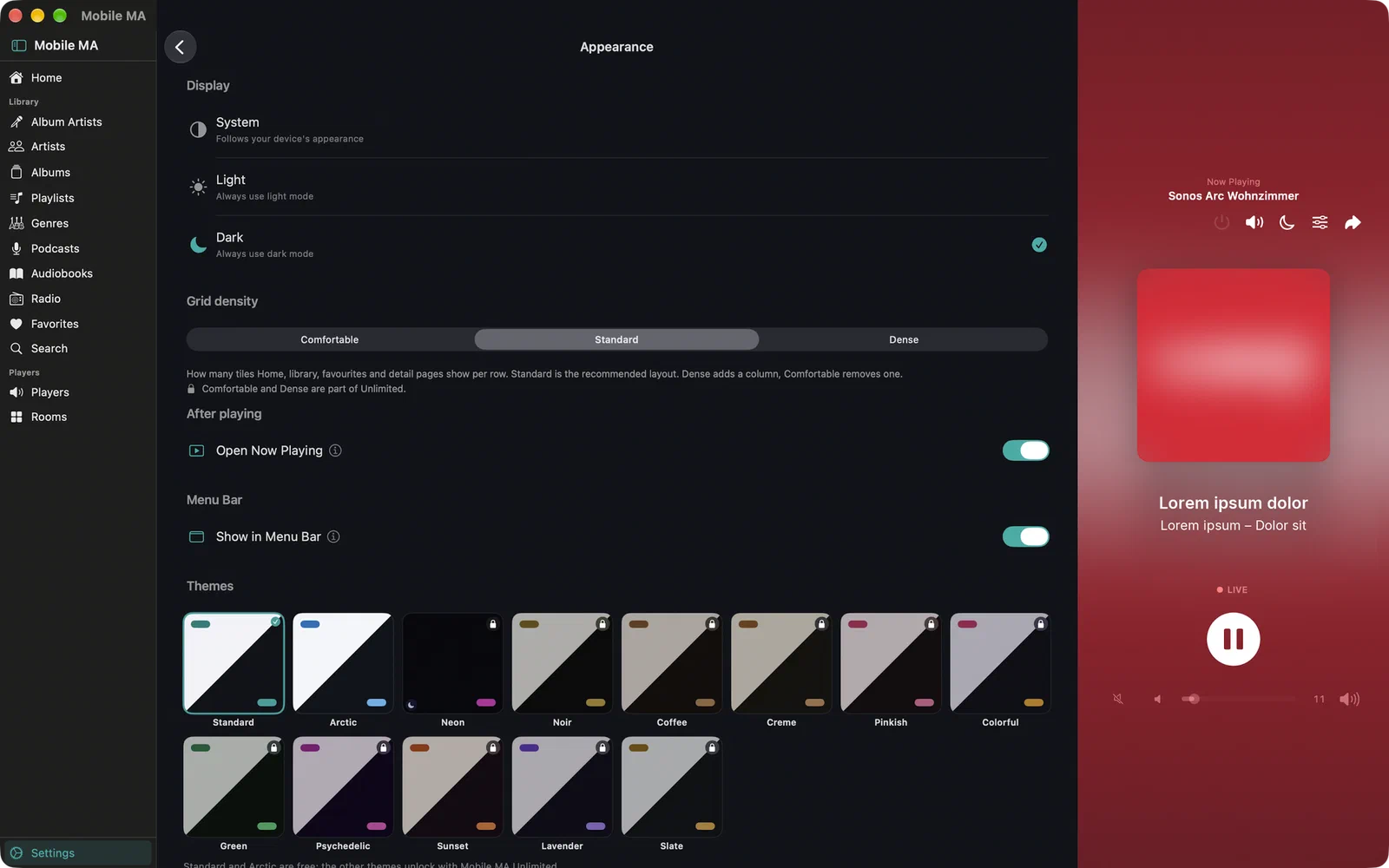
Mobile MA

Features in detail

Six things Mobile MA does well — here in full, instead of in one sentence.

Players, groups & queue

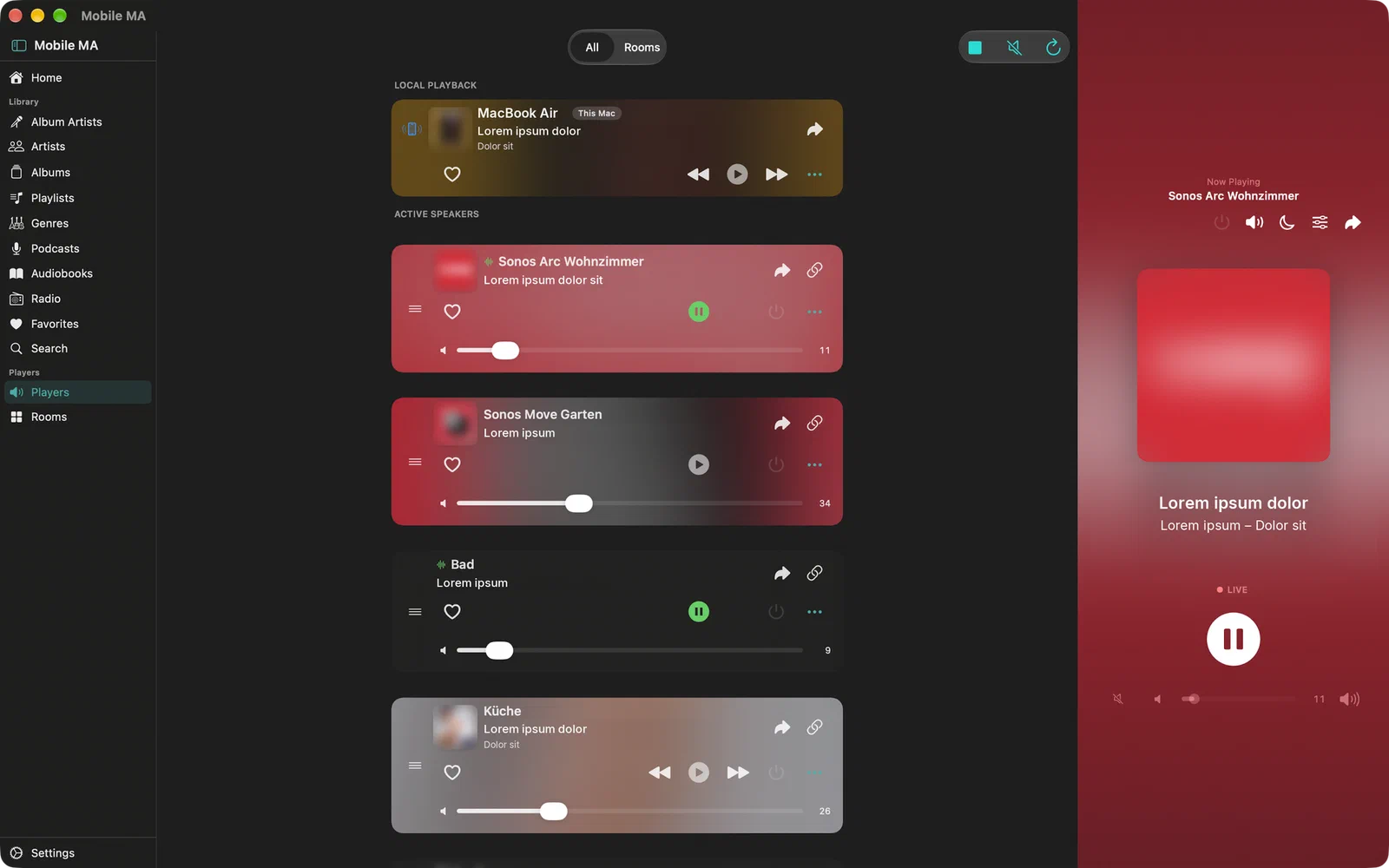
Multi-room scenes, volume and queue — every player under control, synced in real time.

Every player on your server appears in one list — with a type icon, status and volume, synced live. Group any speakers into a zone and start music everywhere at once. In party mode you can hand control to others in the room, and they join in without needing access to your server.

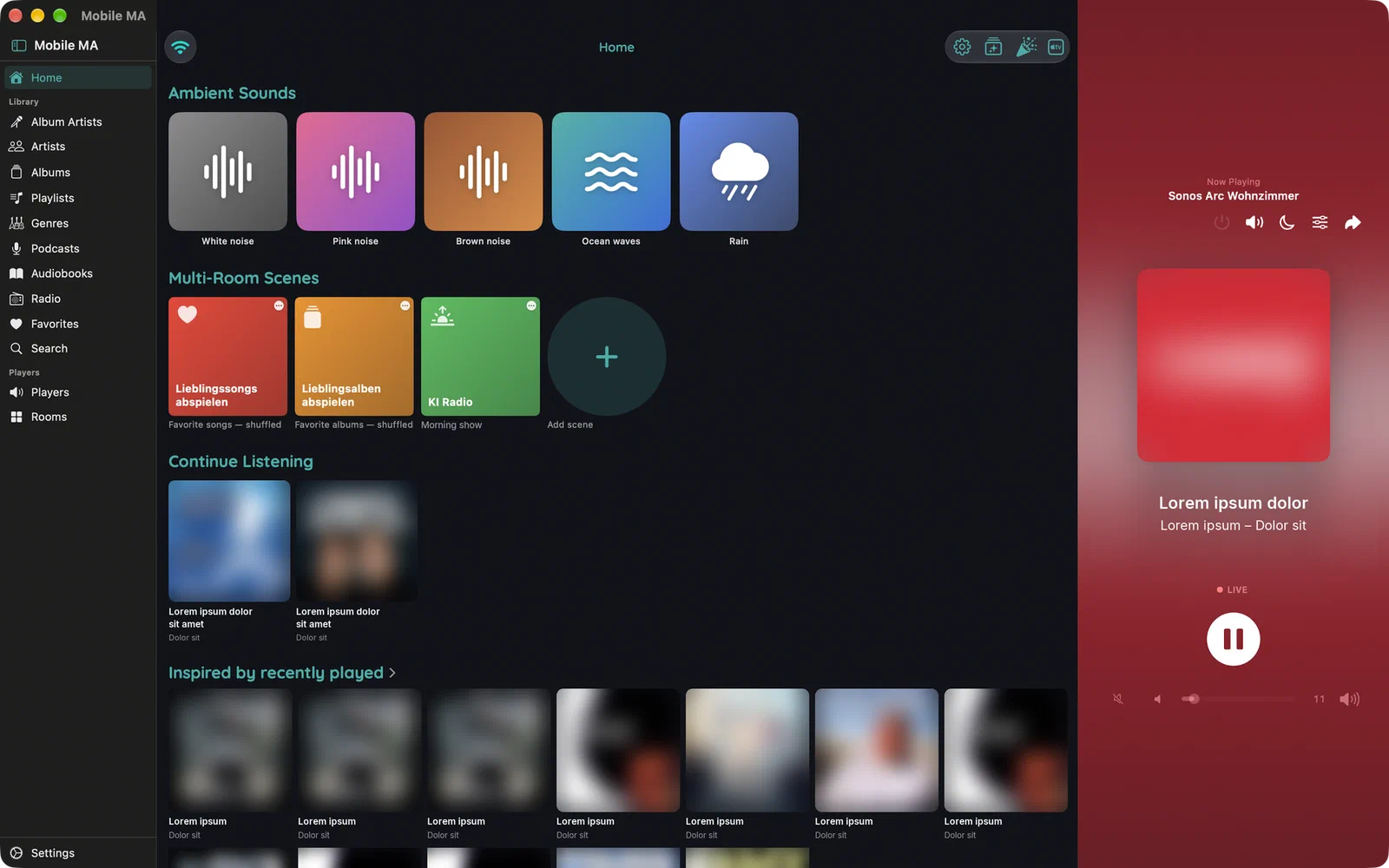
Save the combinations you use often as a scene: one tap, and kitchen, living room and bathroom play together again. Scenes live right on the Home screen, where you can also rename or delete them. Adjust volume per speaker or for the whole group, with a step size you choose yourself.

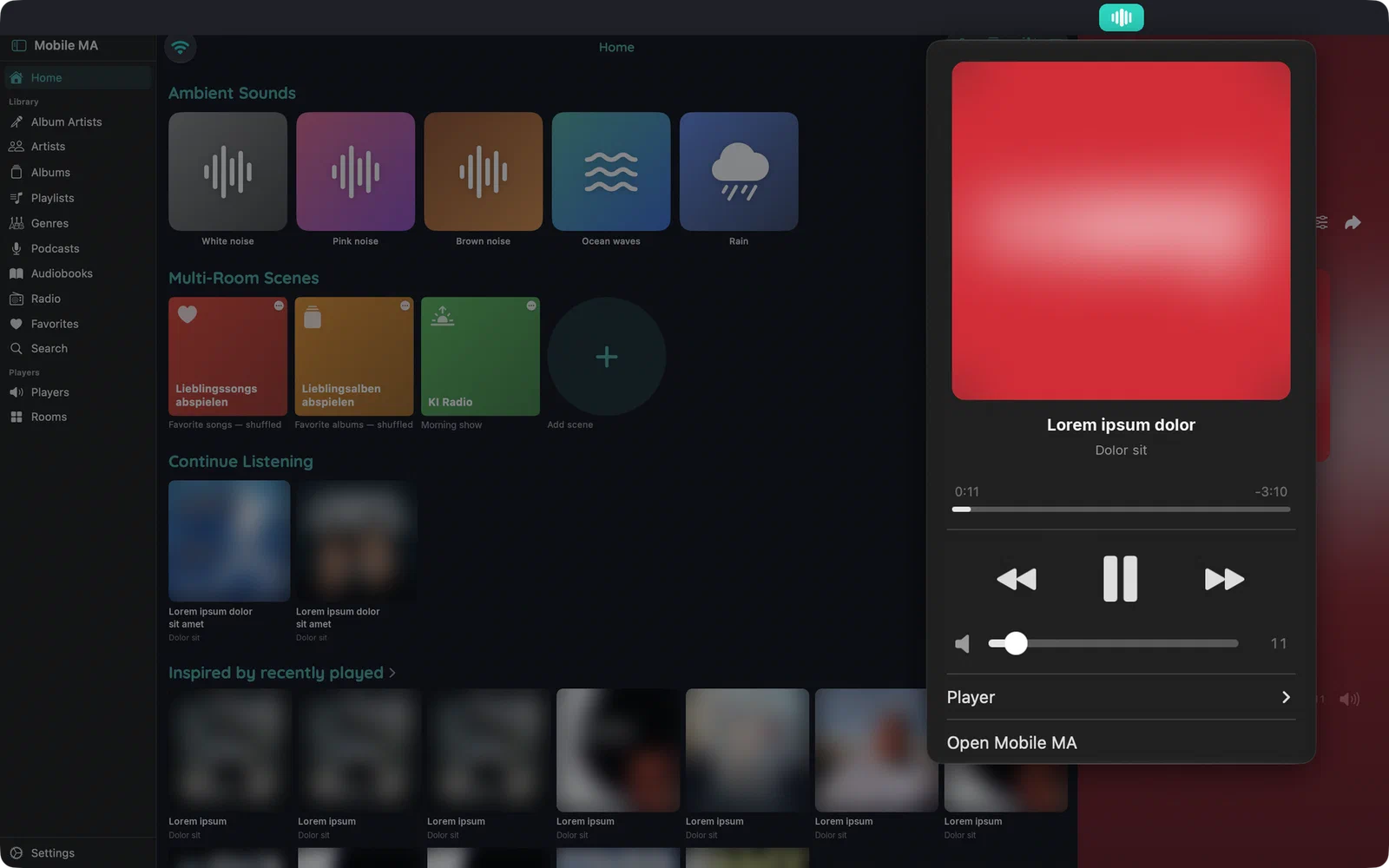
Add songs, albums and playlists to play next or to the end of the queue, always targeting whatever is playing now. Hand the entire queue to another device — current track, playback position and everything still to come — or save it as a playlist with one tap. When music plays on the iPhone itself, a spectrum visualizer shows it in real time.
Access from anywhere

With WebRTC remote access you control your Music Assistant outside your home network — no VPN needed.

Remote access establishes a direct, encrypted WebRTC connection to your server. No port forwarding in your router, no VPN — and no need to expose your server to the open internet.

A button on the Home screen switches between your home network and remote access, and always shows which connection is active. Switch between Wi-Fi and cellular while out, and the app reconnects on its own.

Running more than one server? Save them as named connection profiles — say, Test and Prod — and switch between them with a single tap, no signing out and back in. Each profile keeps its own Direct and Remote access, and iCloud carries your scenes, alarms, home layout and volume preferences to every device you own.

If the connection drops in a dead zone, local playback keeps going and resumes automatically once you have signal again. When a login fails, the app shows the real server message instead of a generic error.

CarPlay

Bookmark favorite stations and keep listening in the car — radio, playlists, and more on CarPlay.

With Mobile MA Unlimited your complete Music Assistant library is available in the car: albums, album artists, artists, genres, songs, playlists, podcasts, audiobooks, radio stations and favorites — each with artwork.

The CarPlay home screen can mirror your app Home with the same sections in the same order. Prefer fewer choices while driving? Configure a deliberately leaner selection just for the car.

Search CarPlay directly by voice or keyboard to find artists, albums and tracks. When an album exists in more than one source — say, local and streaming — CarPlay asks which one before playing and merges duplicate albums into a single entry.

In long lists an alphabet picker jumps straight to the letter you need. Songs, albums and artists can be favorited on the road without touching your phone. CarPlay works even before you have opened the app on your iPhone.

Apple Watch

Control playback straight from your wrist — without reaching for your iPhone.

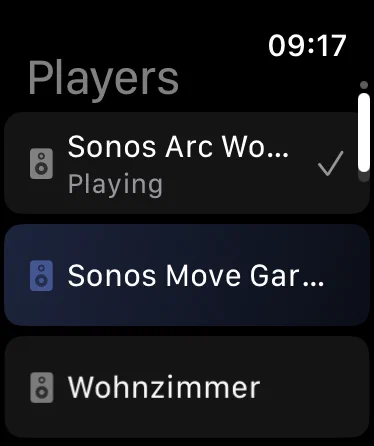
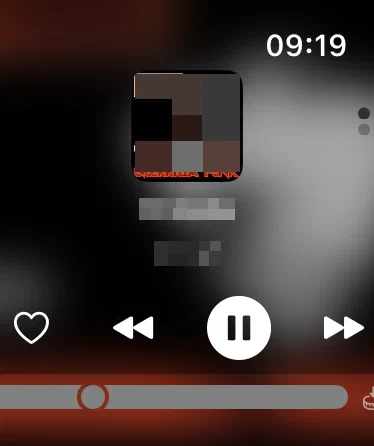
Since version 3.0, Mobile MA runs on the Apple Watch too. The idea behind it is simple: for “louder”, “next track” or “music in the living room” you shouldn’t have to pull your phone out of your pocket at all.

On the watch you browse your players and see what’s currently playing, artwork included. Play/pause and skip are one tap away, and the Digital Crown adjusts volume. Favorite the current track right from your wrist, and a scrubber lets you seek forward and back through playback.

Apple TV

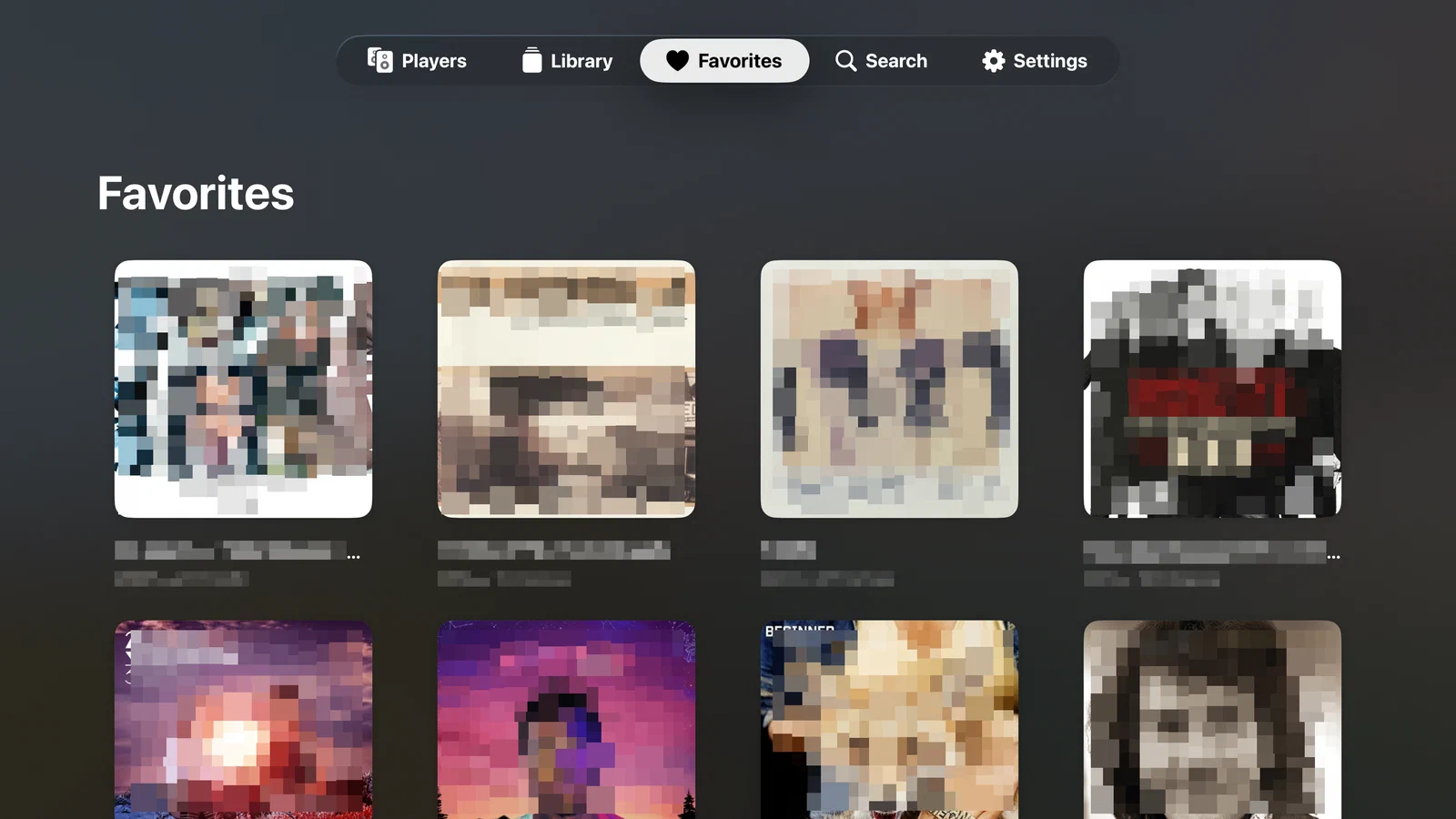
Music Assistant on the big screen — players, library and search right from the couch.

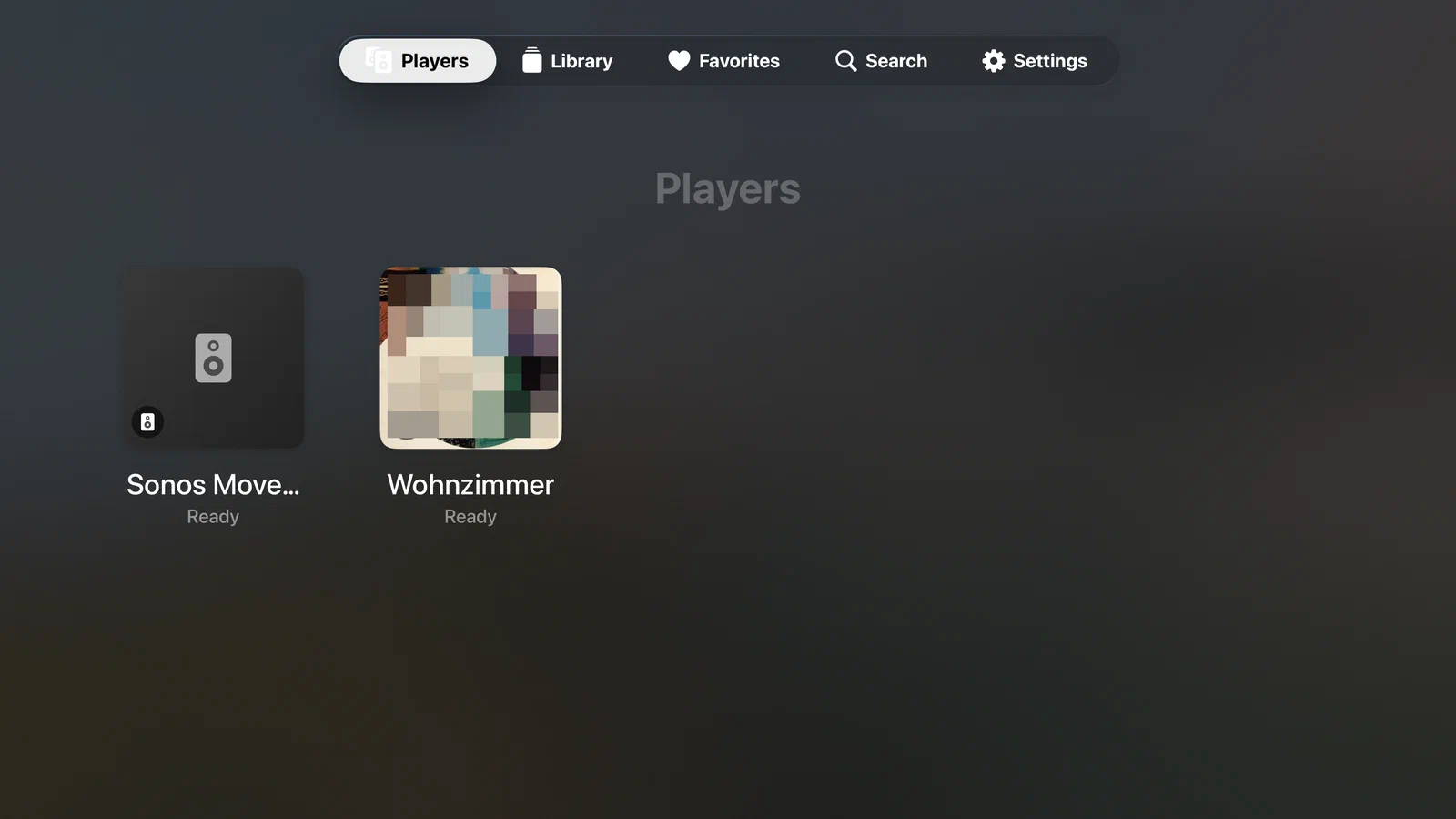
Since version 3.1, Mobile MA is also available on Apple TV — as a universal purchase: buy once, use on iPhone, iPad and Apple TV. The app discovers your Music Assistant servers on the home network by itself and shows the server version next to each entry, so production and test systems are easy to tell apart.

There’s nothing to type during setup: your iPhone hands your server credentials to the Apple TV with a tap via the device picker, or with a 6-digit code. Manual login remains available as an alternative.

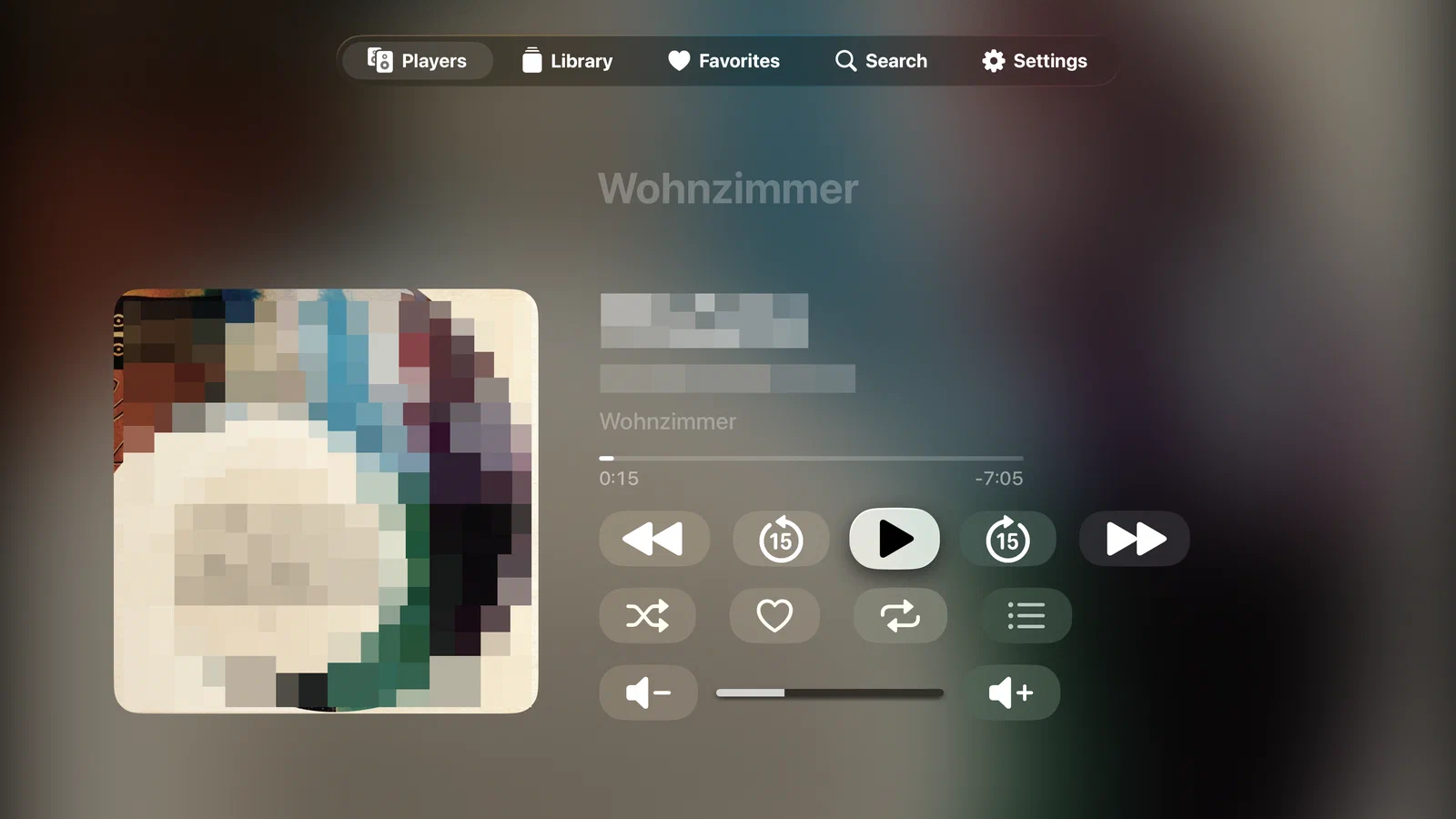
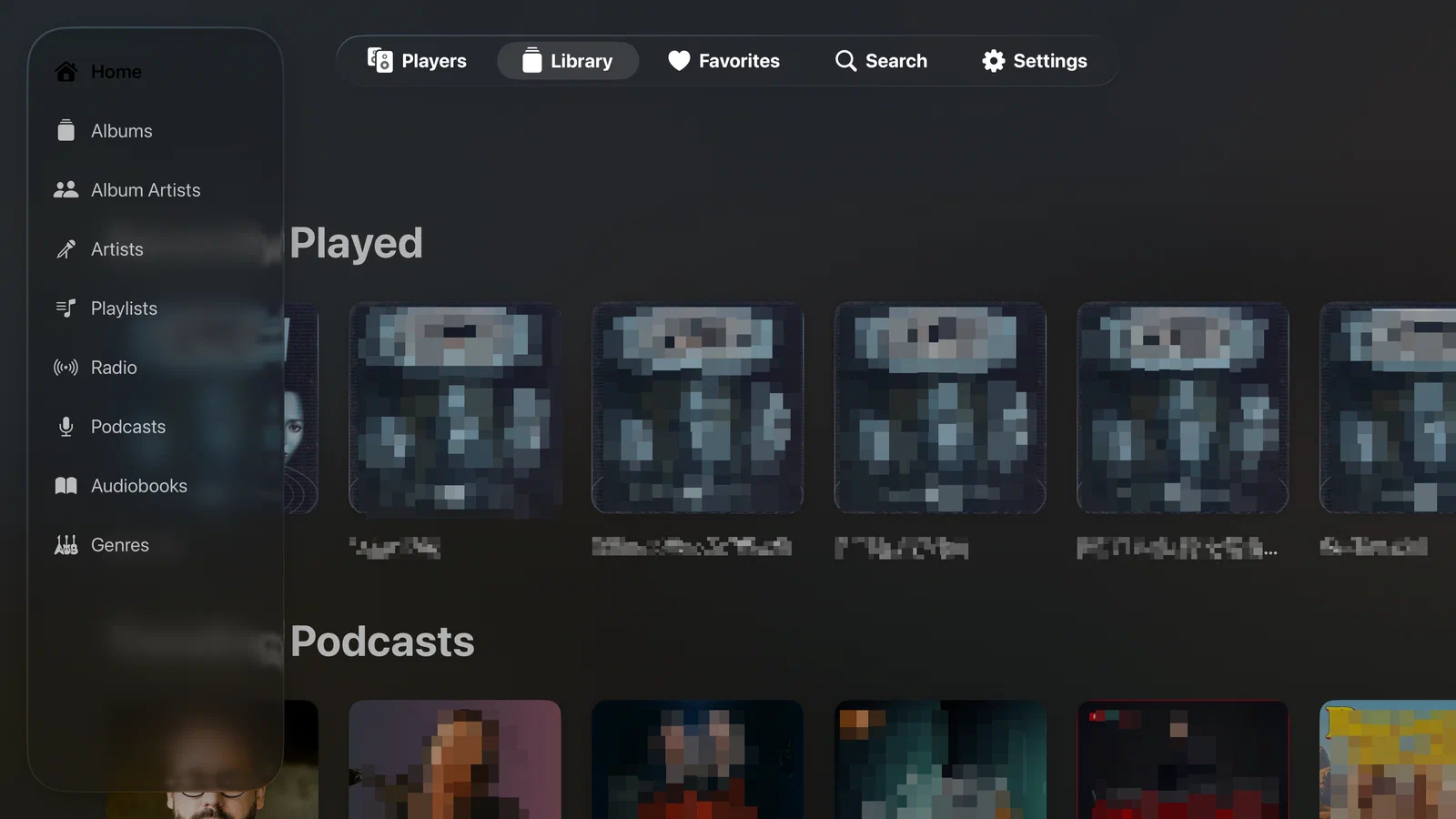
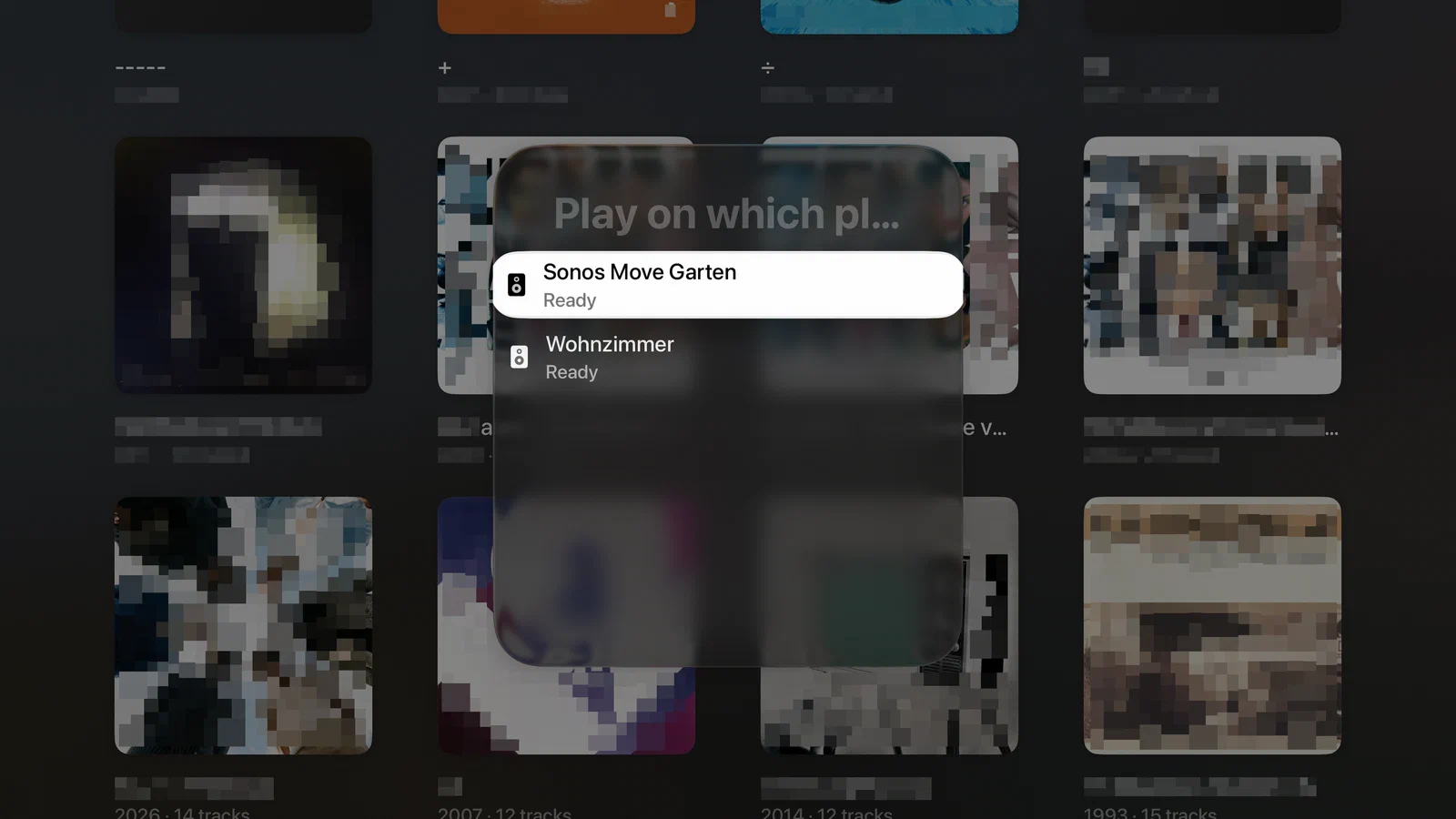
On the TV you control your players, see Now Playing with big artwork, browse your library and search for artists, albums and tracks — all with the Siri Remote. Requires tvOS 17 or later.

Library, podcasts & radio

Albums, artists, playlists, podcasts, and radio — quickly searched and beautifully presented.

The Discover home screen leads into your library through recommendations, recently played items and random picks. Which sections appear, and in what order, is entirely up to you — reorder or hide anything.

Search merges results from different providers and finds radio stations by name too. Source tags on albums and artists show at a glance where an entry comes from, and can be tapped to filter.

Podcasts and audiobooks get their own Continue Listening section that picks up exactly where you left off — with variable speed and configurable skip intervals. When something good comes on the radio, capture it with one tap: Mobile MA resolves the track against your library, then you can play, queue or favorite it.

Your data stays yours

Direct connection to your server. No cloud, no tracking, no accounts.

Mobile MA talks exclusively to the server you configured yourself. There is no intermediary service, no user account and no sign-up.

No analytics, tracking or advertising services are built in, and crash reports do not go to third parties. Credentials live only in the iOS Keychain on your device and are synced via iCloud between your own devices only, so they survive an app update.

What you listen to stays between you and your server.

← Mobile MA